How to add a Volunteer Opportunity

Once you have signed up your organisation, you will be able to post volunteer opportunities describing the volunteer roles that you are looking to fill.

You are welcome to use the FareShare Community Hub to recruit for any volunteer roles. You may wish to recruit volunteers to help with your FareShare food collections or to support another role within your organisation.


How to add a volunteer opportunity

1. To sign in, go to admin.doit.life

2. Enter your login details and click ‘Sign In’. 

3. You will be directed to your organisation’s profile, opening on the ‘Activities’ page

4. Click ‘New Activity’ in the top right corner of the page.
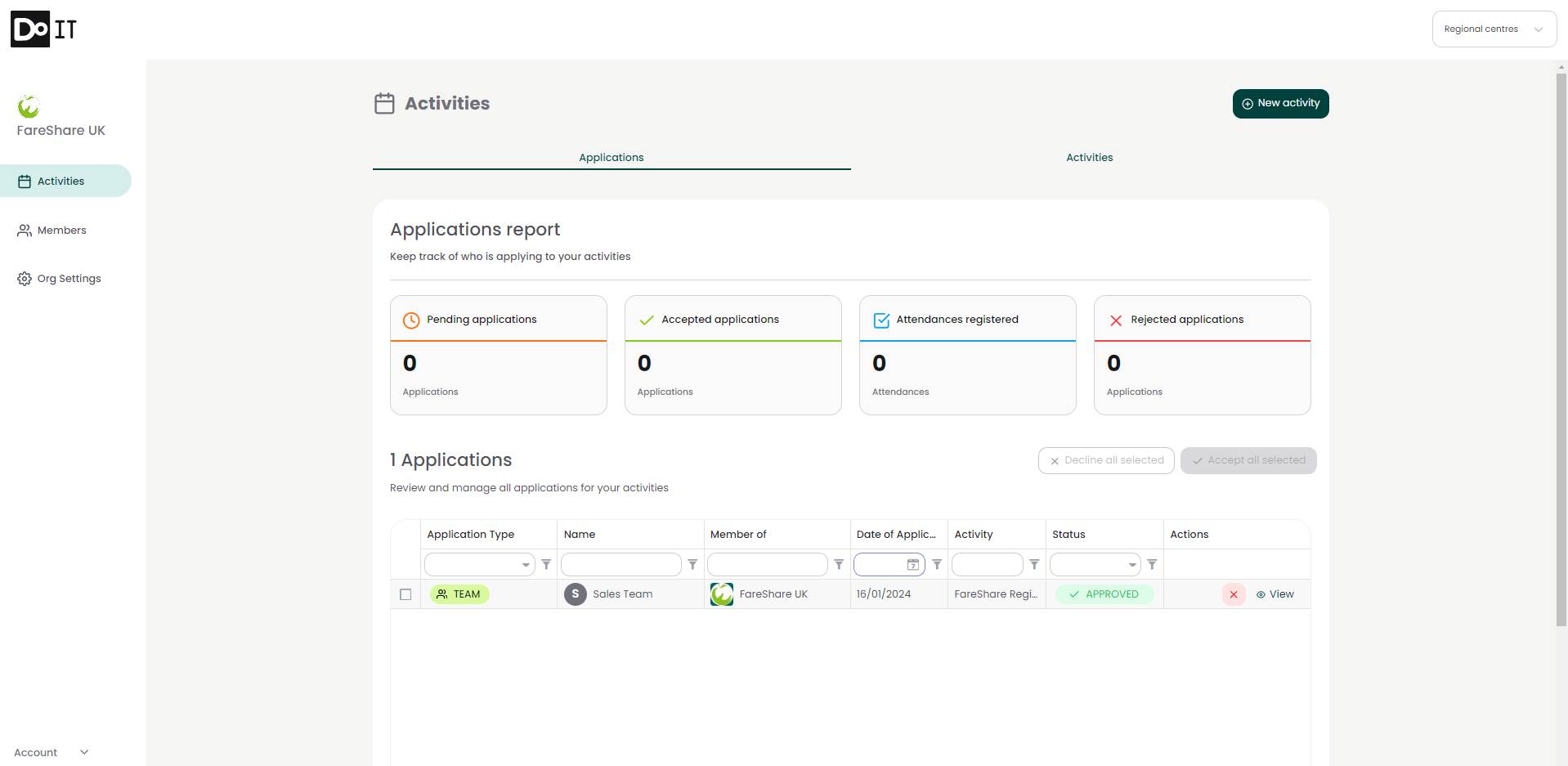
 

5. You will be asked to select which type of activity you would like to create. There are 3 types of activity: 
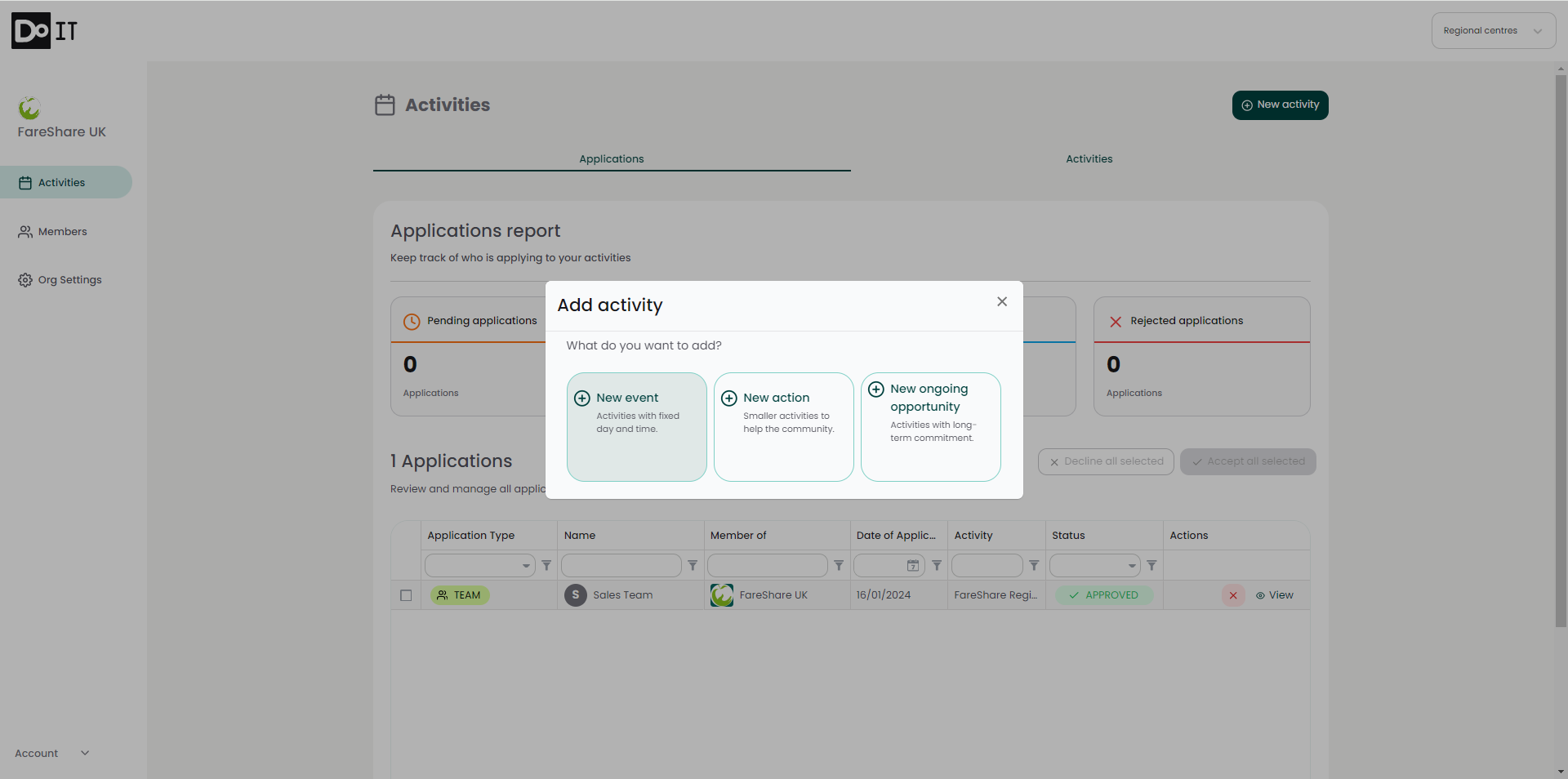
  • Events – Activities with a fixed date and time, for either individuals or groups. This could be one off events or a semi-regular session, such as Communit Fetes and walking groups. 
  • Actions – Small acts to support your organisation or the community. This could include online events, litter picking or donations. 
  • Ongoing Opportunities – Volunteering opportunities which require a long-term, regular commitment. This could include a food delivery driver or cafe helper.

6. You will be directed to a form. Below we have given additional guidance on specific fields: 
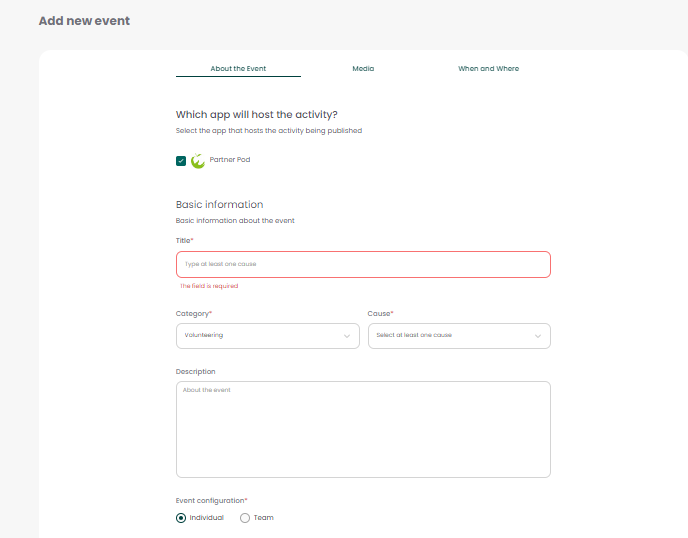
  • Title – give a clear title for the role that the volunteer will be doing, for example “Food Collection Driver 
  • Cause – Select the cause that best describes the opportunity, or the work that your organisation does. 
  • Description – This is where potential volunteers will be directed to learn about your volunteering opportunity, so try to include as much information as possible. 
  • Event Configuration – ‘Individual’ events require only one person for the role. ‘Team’ events require more than one person. 
  • Application Approval Required – Selecting ‘No’ means applicants will have their volunteering opportunity confirmed upon application, selecting ‘Yes’ means applicants are notified that their application is being reviewed, and you will need to review and manually approve any applicants. 
  • Details – This is an optional section in which you can provide specific details about your event that will be displayed prominently to potential volunteers reviewing your opportunity.  

7. In the next section of the form you can add images that will be displayed on your opportunities page. 
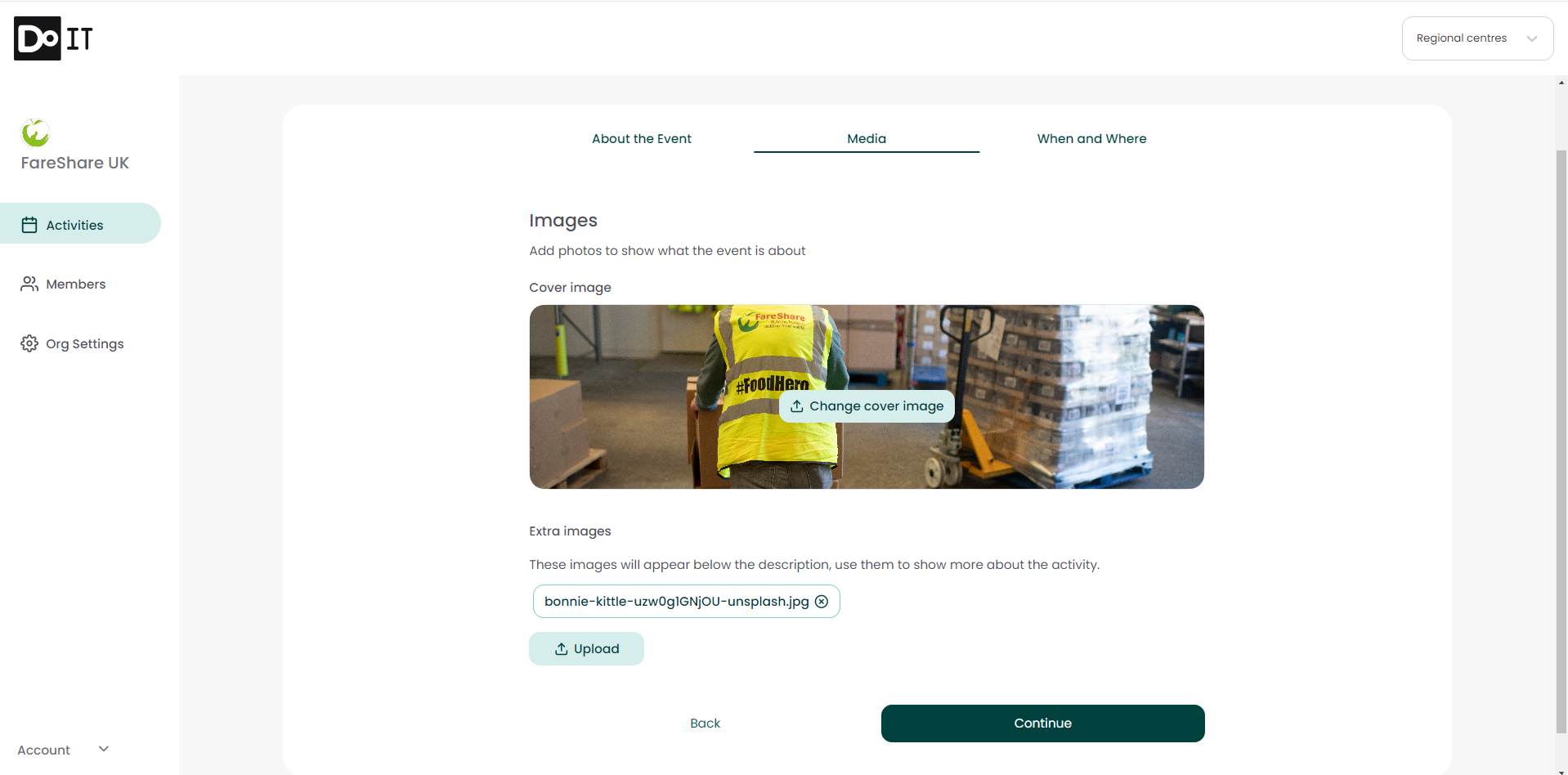
8. Finally, you can input the location and date of your event. If an event is taking place on multiple days or across multiple locations, there is an option to add additional dates or locations at the bottom of the page. 
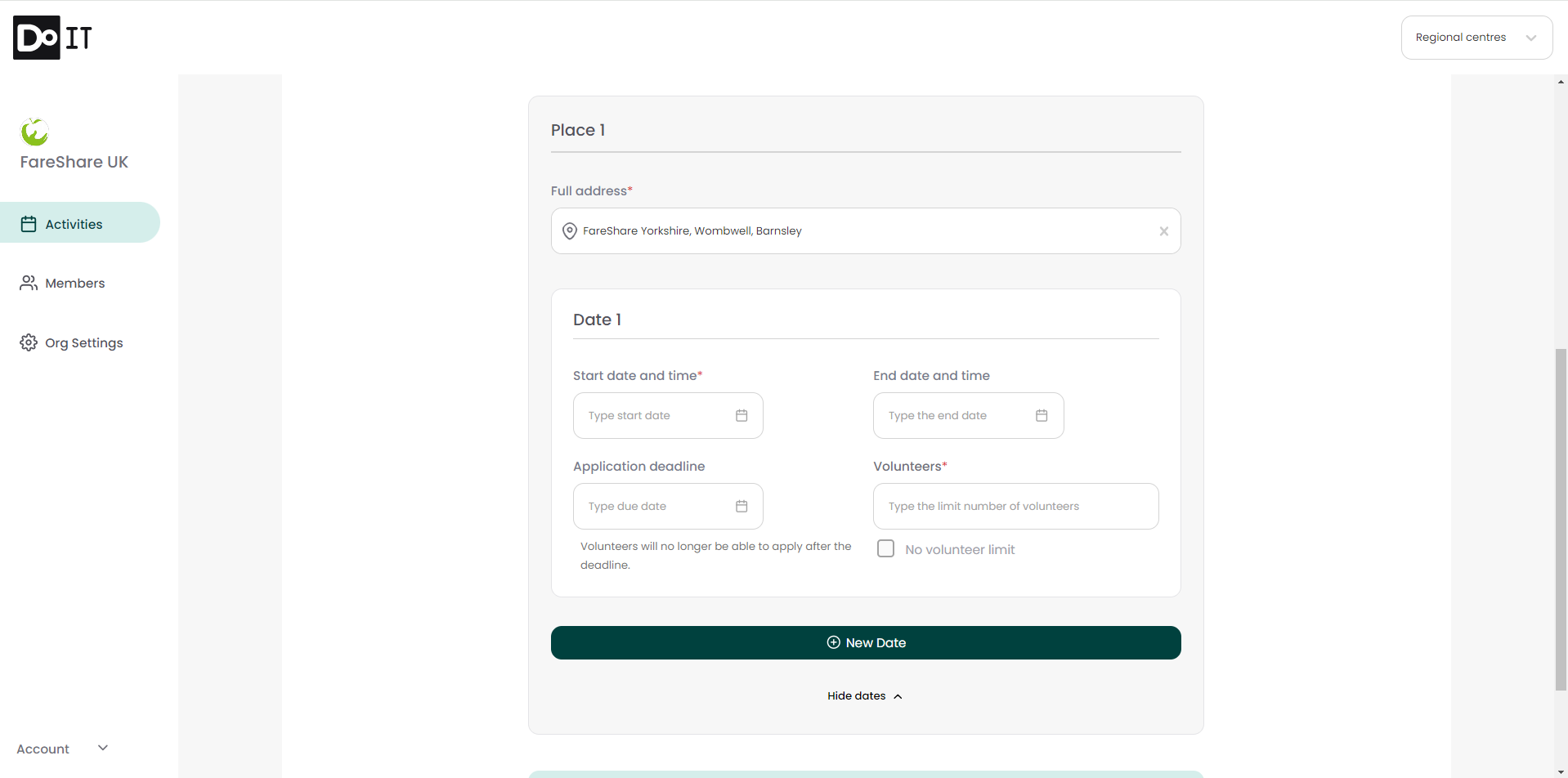
9. Click ‘Publish’ to publish your opportunity to the Community Hub. You will receive a confirmation message and be taken back to the homepage.


The opportunity will go live on FareShare Community Hub for volunteers to find and register their interest. The next step will be for you to manage any applications. Here is a step-by-step guide to help you Manage Your Volunteer Applications.